

 All blog posts

To do meaningful work, employees need access to a variety of data and services. Whether it be sensitive employee information in Workday, or strategy and planning documents in Google Drive or Box, organizations must determine what the appropriate level of access is to information, and enforce those policies. Typically an employee's role will determine which systems and information they have access to, and IT will provision and enforce that access.
Agents are similar. They need access to data and systems to be useful, but access should be granted in a predictable and thoughtful way. What that looks like for an enterprise will differ from a startup. We built Recursion Managed Agents (RMA) from the ground up with this in mind. The result is a comprehensive yet flexible set of tools for controlling what your agents can access, and what they can't.
Connecting agents to systems
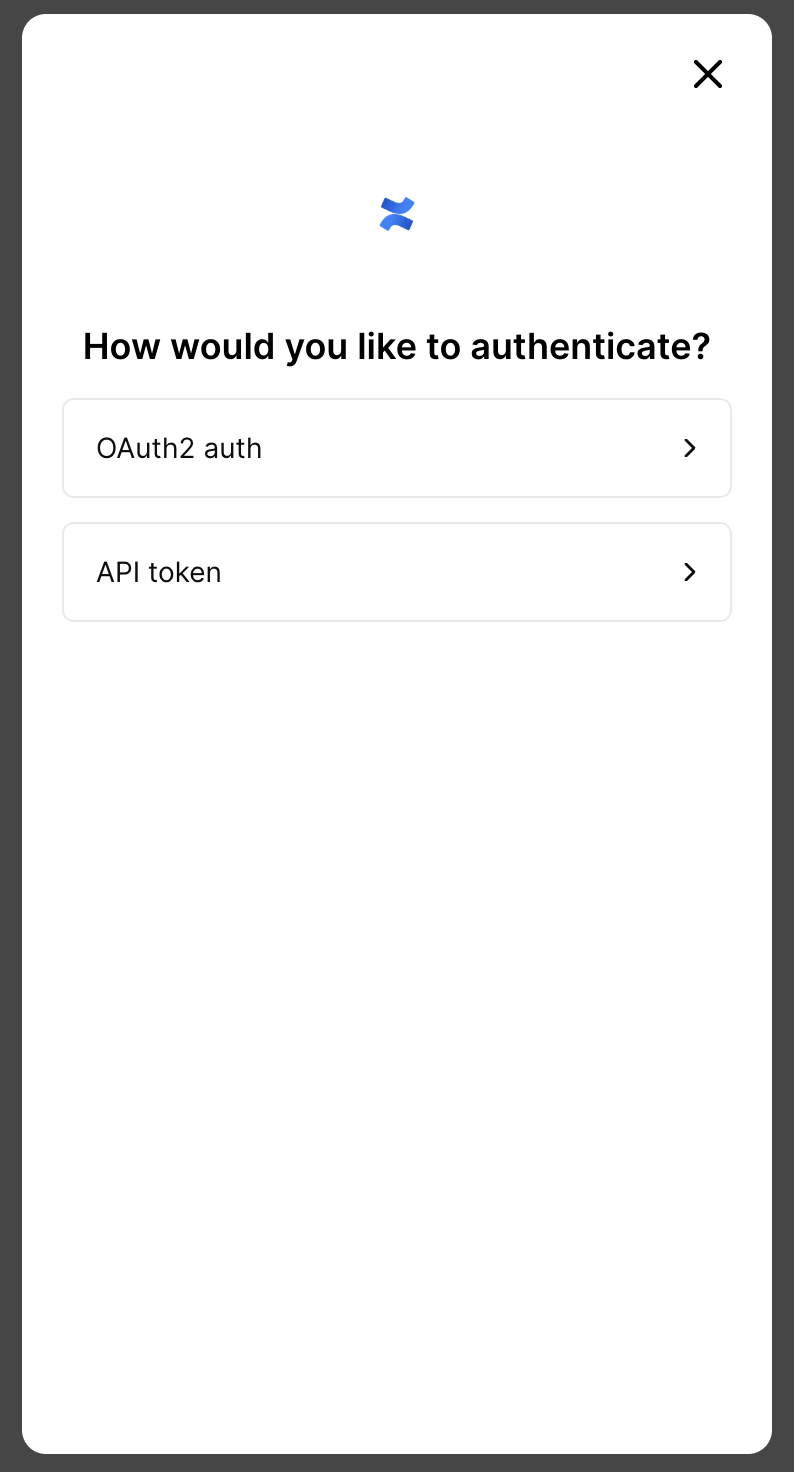
RMA provides agents access to 160+ third-party services through "integrations." You add an integration by selecting a service (e.g., Google Calendar) and then authorizing the connection. For some services, this means logging in and approving the connection. For others it means supplying an API key or setting up a service account, depending on what the given service supports.
Many integrations allow you to configure which "tools" can be used by agents—you might choose to enable read-only tools and disable all tools that can modify data, for example.
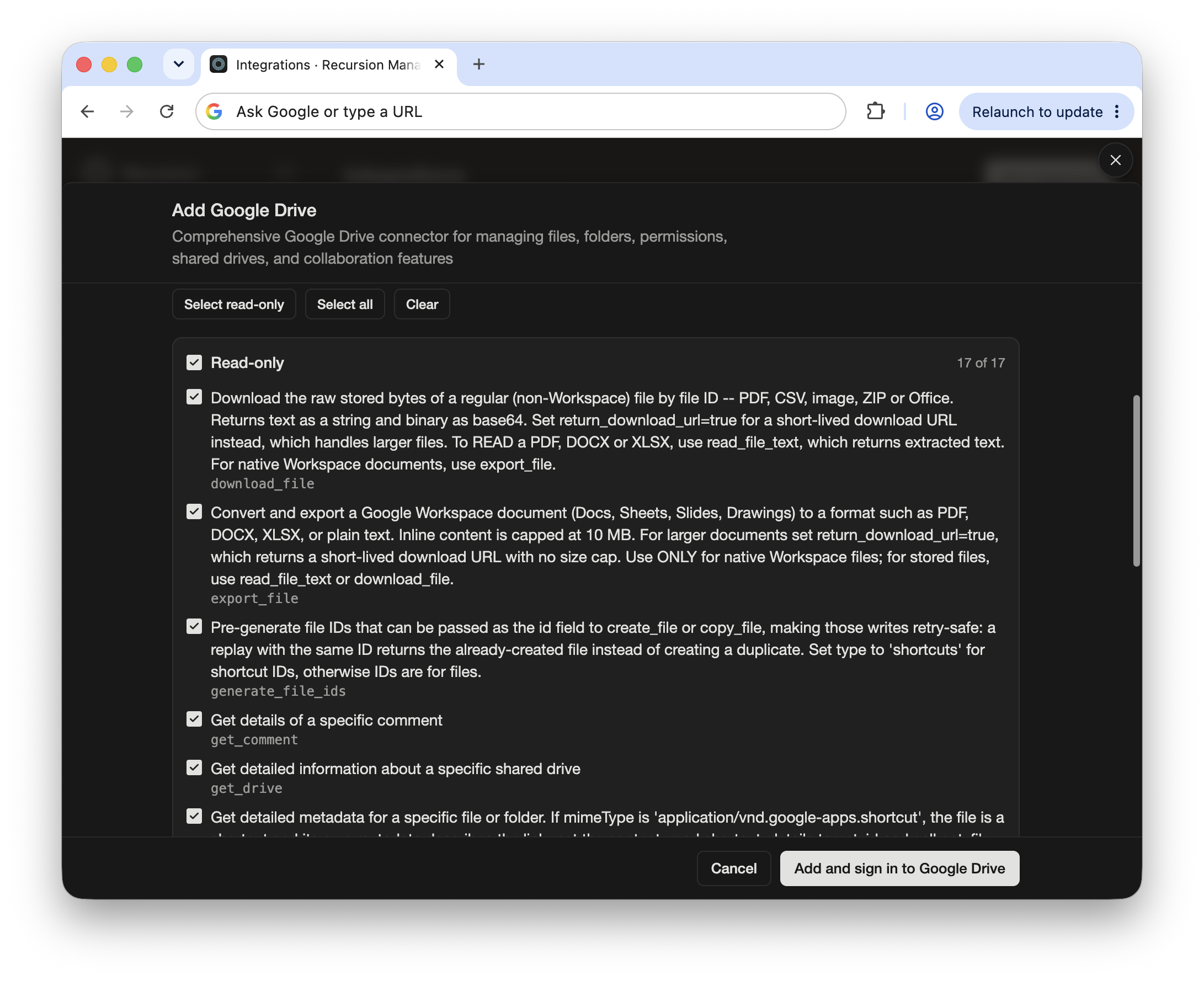
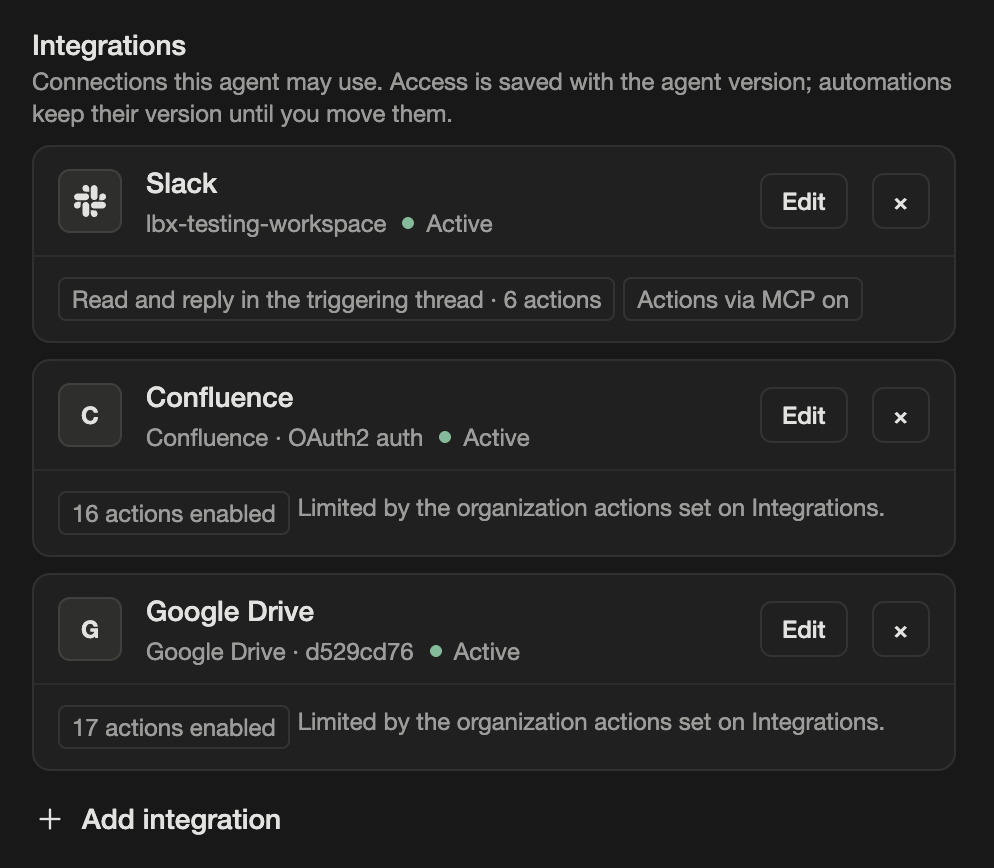
Once an integration is connected, you can then grant an agent the ability to use it. By default, agents do not have access to any integrations.
Organizing agents and integrations
RMA allows you to organize your agents and integrations into separate organizations within a tenant. Billing is handled at the tenant level while organizations provide a security boundary—an agent in one organization does not have access to agents or integrations in another organization.
For example, you might have a single tenant for your company, Acme Inc., and then have separate RMA organizations for each department: Sales, Finance, Marketing, Engineering, etc. Your sales organization might have a Salesforce integration while your Engineering organization has integrations for GitHub, LogRocket, and Datadog. The key is that the two organizations, and the integrations and agents within them, are isolated from a security and data access standpoint.
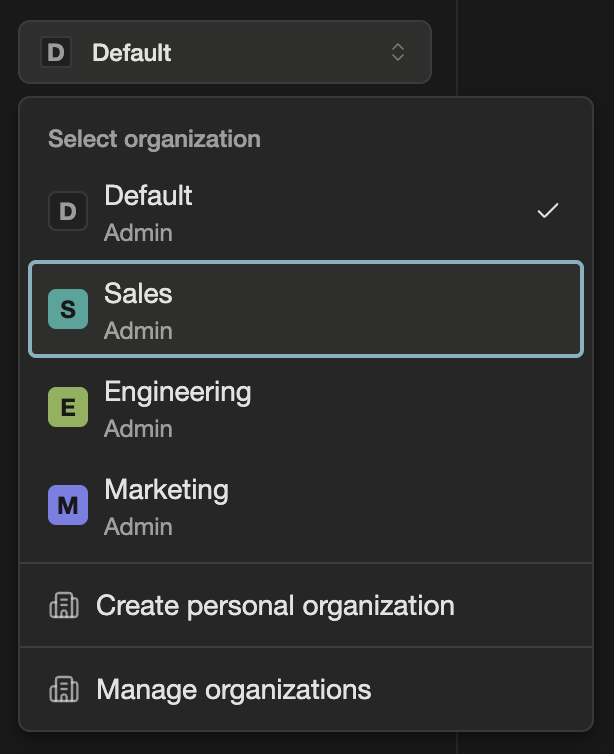
RMA also allows members of a tenant to create their own “personal” organizations that can be used to house integrations and agents that are user-specific. For example, a user might want to set up a personal organization with a Slack integration that can post on their behalf, or give an agent access to their Google Calendar. Since organizations are a security boundary, other users will not have access to their agents, integrations, or sessions, unless they make their agent available to others via a Slack automation, for example.
Acme Inc.
Sales
Engineering
Finance
Marketing
Your personal org
A teammate’s personal org
Multi-layered access controls
Think of integration access like an onion with multiple layers, where each layer tightens the access provided by the previous layer. In RMA, there are four main layers where access to third-party services can be configured:
The first layer is the set of access controls provided by the third-party service. For example, integrations like GitHub, Slack, and others have an associated "app" that must be installed in your workspace. In many cases, your IT or system administrator can decide what access and permissions that app has. In Slack you might choose to only add the app to certain channels. Access controls in this layer will vary from integration to integration.
Then comes the account used to authorize the integration. This could be a service account, a "regular" user account, or a "virtual employee" account—an account specifically provisioned for use by an agent. The access granted to this account will determine what an agent can do.
Next are the integration settings in RMA. Many integrations allow you to select a precise list of tools that agents will have access to: these could be read-only tools or tools that modify data.
01Third-party service
Slack app added to selected channels
App permissions set by your IT or system administrator
02Authorizing account
The account’s own permissions are the ceiling
Service account, user account, or virtual employee
03Integration settings
Read-only tools · write tools disabled
Tools enabled for this integration in RMA
04Agent grant
Selected GitHub repositories · read access only
Tools and resources limited for this agent
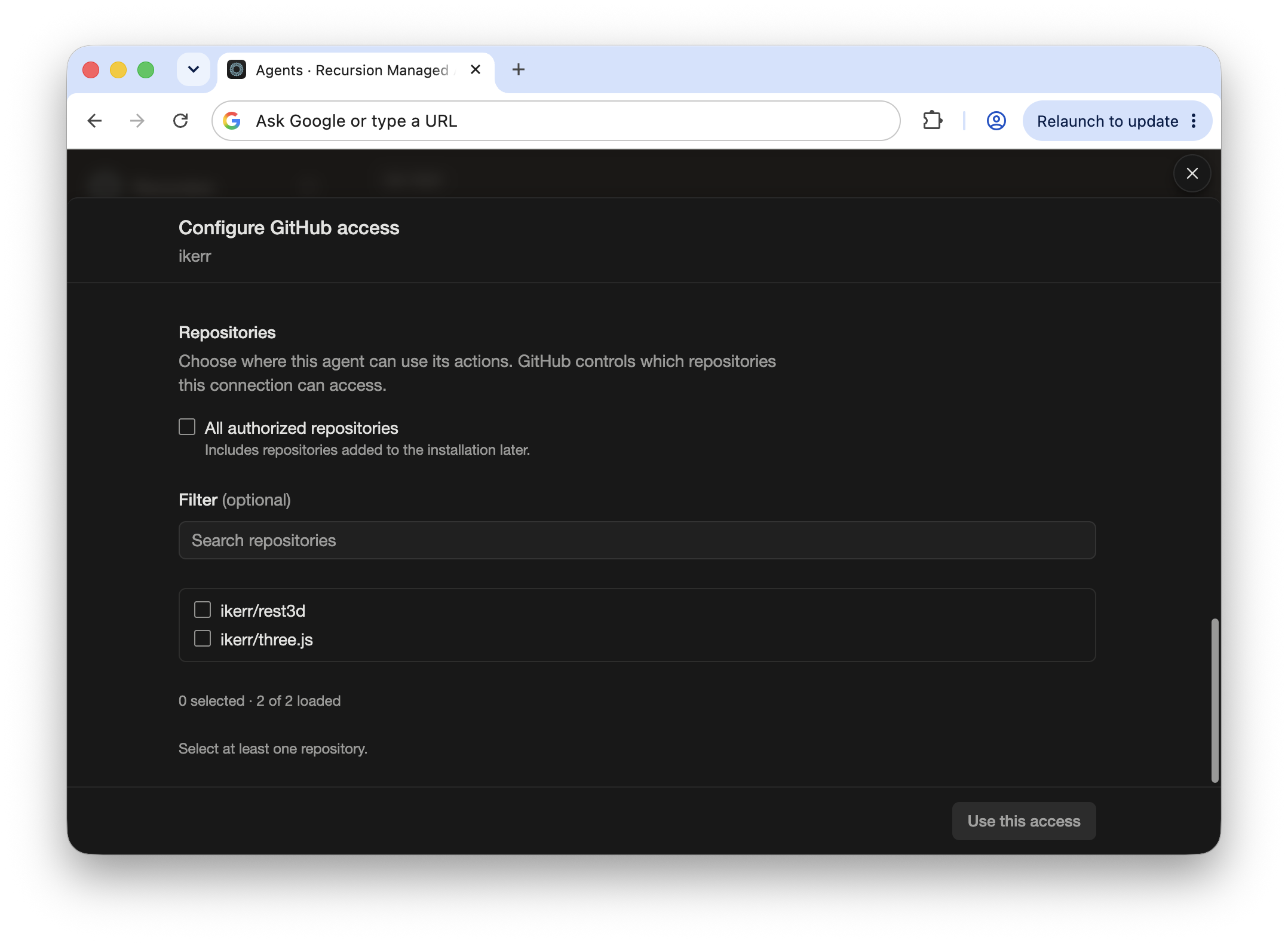
Finally, when granting an integration to an agent, you can further narrow its tools, never exceeding what is configured on the integration itself. You can also limit the resources available to that agent. For example, GitHub allows you to select which repositories the agent can access. Some agents may only require read access while others need to modify data. This gives you fine-grained control over each agent's access.
"Personal tasks" in Slack
Some tasks also require access to a person's own account. In Slack, RMA handles these through "personal tasks": the agent requests access to the person's third-party account, such as Google Calendar, to act on their behalf. For example, a user might request the following in Slack:
@Recursion schedule a meeting tomorrow, on my behalf, with all RMA engineers regarding improvements to the CI/CD pipeline.
The agent then responds with a private request to access the user's Google Calendar, with only the tools necessary to complete the task. If the user grants access, the agent proceeds with the task, in an isolated, private agent session, and then presents the user with a draft reply that they can approve or reject. This gives the user the ability to ensure that no personal or sensitive information gets posted to Slack without their sign-off. Once the task is complete, the agent loses access to the user's account.
Ask in Slack
@Recursion, on my behalf
Private request
Only the tools the task needs
Isolated session
Runs once the user grants access
Draft for sign-off
The user approves or rejects
Access ends
When the task is complete
This feature can be enabled or disabled organization-wide or restricted to certain Slack channels or DMs.
Keeping credentials from agents
In addition to controlling which services and tools an agent has access to, it is also important not to expose secrets such as credentials to agents, so that they cannot accidentally be leaked. To that end, RMA hides integration credentials from agents—how that is done depends on the type of integration.
For integrations that expose tools, agents make tool requests via RMA's "Control Plane." The Control Plane determines if the tool call should go ahead (depending on which tool calls the agent is allowed to make), then attaches the appropriate credentials, makes the tool request, and finally returns the result to the agent. The agent never sees the credential. This is shown in the following sequence diagram:
01Agent sandbox → Control Plane
Request MCP tool
02Control Plane
Check session grant
03Control Plane → Credential store
Open credential
04Credential store → Control Plane
Credential
05Control Plane → MCP server
Call tool with credential
06MCP server → Control Plane
Tool result
07Control Plane → Agent sandbox
Tool result only
For integrations that use a CLI, like GitHub, RMA provides a fake credential to the agent sandbox. When git makes a request, RMA's egress proxy swaps the fake credential with the real credential, as shown in the following sequence diagram:
01Agent sandbox → Egress proxy
Git request with placeholder credential
02Egress proxy → GitHub
Git request with real token
03GitHub → Egress proxy
Response
04Egress proxy → Agent sandbox
Git result
Access that follows the work
Work crosses systems, and agents need to follow it to be useful. RMA gives teams control over which organizations, accounts, tools, and resources an agent can reach. When a task needs someone's personal account, that person decides whether to grant access. Credentials stay outside the agent's reach wherever the integration allows it. Together, these boundaries let agents take on meaningful work while people remain in control of what they can see and do.